BR APPS
Registered
- Joined
- Jan 21, 2024
- Messages
- 131
- Points
- 63
Online
1 - Subir o arquivo "Painel.zip" em sua hospedagem e descompactar ou subir os arquivos descompactados.
Basta fazer o upload do arquivo zip para sua hospedagem e descompactá-lo.
Obs: deixar a VERSÃO PHP em 7.2 ou 7.4
====================================================================================
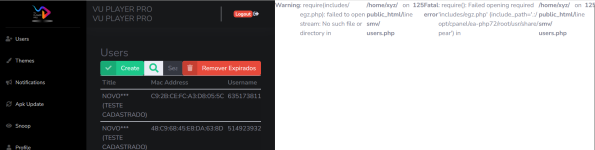
2) Abra o Painel
"
USUARIO: admin
SENHA: admin
====================================================================================
*Editar o APK VU PRO com o APK Editor ou MT
1) procure por "dns.com"
e substitua pelo Endereço do seu Painel.
Ex: "
O CAMINHO ESTA EM SMALI:
smali_classes2/com/vupurple/player/parent/apps/Constants.smali LINHA: 147
(NÃO MODIFICAR OS DEMAIS CARACTERES)
3)
Obs: Modifique tbm o seu site, para os clientes serem direcionado para seu Whats, por exemplo.
e substitua pelo seu site ou whatsapp ou telegram.
O CAMINHO ESTA EM RES:
res/layout/activity_xcchange_playlist.xml LINHA: 17
res/layout/fragment_description.xml LINHA: 7
===============================================================================
PARA CONFIGURAR O CHATBOT
Já no Painel,
Em DNS colocar a DNS do servidor*
1)Em URL você vai colocar a URL de configuração do seu chatboot.
1-A) feito isso agora falta o terceiro passo entrar nas configuração do seu painel de IPTV configuração do chatboot
2) Adicionar mensagem selecione teste IPTV coloque na mensagem esse código ( api_cadastro )
3) após isso a mensagem que o servidor for enviar você apaga tudo a mensagem e coloca o seguinte código
abaixo
{USERNAME}|{PASSWORD} feito isso já está tudo configurado
OBS; tem painel que tem q mudar essa mensagem ficando assim:
#username#|#password#
Developer: EMANUEL NASCIMENTO
========================================================================================================
========================================================================================================
ENGLIS ( GOOGLE )
1 - Upload the "Panel.zip" file to your hosting and unpack it, or upload the unpacked files.
Simply upload the zip file to your hosting and unzip it.
Note: Keep the PHP VERSION at 7.2 or 7.4
====================================================================================
Open the Panel
"
USERNAME: admin
PASSWORD: admin
====================================================================================
*Edit the APK VU PRO with APK Editor or MT
Look for "dns.com" and replace it with your Panel's Address.
The PATH IS IN SMALI:
smali_classes2/com/vupurple/player/parent/apps/Constants.smali LINE: 147
(DO NOT MODIFY OTHER CHARACTERS)
Note: Also modify your website so that clients are directed to your WhatsApp, for example, and replace it with your site or WhatsApp or Telegram.
The PATH IS IN RES:
res/layout/activity_xcchange_playlist.xml LINE: 17
res/layout/fragment_description.xml LINE: 7
====================================================================================
TO CONFIGURE THE CHATBOT
Already in the Panel,
In DNS, enter the server's DNS*
In URL, you will enter the configuration URL of your chatbot.
1-A) After doing this, now the third step is to enter the configuration of your IPTV panel, configuring the chatbot
Add message select IPTV test, put in the message this code (api_cadastro)
After that, delete everything the server will send you, and put the following code
below
{USERNAME}|{PASSWORD} After that, everything is already configured
NOTE; some panels require changing this message as follows:
#username#|#password#
Basta fazer o upload do arquivo zip para sua hospedagem e descompactá-lo.
Obs: deixar a VERSÃO PHP em 7.2 ou 7.4
====================================================================================
2) Abra o Painel
"
Please upgrade your account to access the hidden content.
USUARIO: admin
SENHA: admin
====================================================================================
*Editar o APK VU PRO com o APK Editor ou MT
1) procure por "dns.com"
e substitua pelo Endereço do seu Painel.
Ex: "
Please upgrade your account to access the hidden content.
".O CAMINHO ESTA EM SMALI:
smali_classes2/com/vupurple/player/parent/apps/Constants.smali LINHA: 147
(NÃO MODIFICAR OS DEMAIS CARACTERES)
3)
Obs: Modifique tbm o seu site, para os clientes serem direcionado para seu Whats, por exemplo.
e substitua pelo seu site ou whatsapp ou telegram.
O CAMINHO ESTA EM RES:
res/layout/activity_xcchange_playlist.xml LINHA: 17
res/layout/fragment_description.xml LINHA: 7
===============================================================================
PARA CONFIGURAR O CHATBOT
Já no Painel,
Em DNS colocar a DNS do servidor*
1)Em URL você vai colocar a URL de configuração do seu chatboot.
1-A) feito isso agora falta o terceiro passo entrar nas configuração do seu painel de IPTV configuração do chatboot
2) Adicionar mensagem selecione teste IPTV coloque na mensagem esse código ( api_cadastro )
3) após isso a mensagem que o servidor for enviar você apaga tudo a mensagem e coloca o seguinte código
abaixo
{USERNAME}|{PASSWORD} feito isso já está tudo configurado
OBS; tem painel que tem q mudar essa mensagem ficando assim:
#username#|#password#
Developer: EMANUEL NASCIMENTO
========================================================================================================
========================================================================================================
ENGLIS ( GOOGLE )
1 - Upload the "Panel.zip" file to your hosting and unpack it, or upload the unpacked files.
Simply upload the zip file to your hosting and unzip it.
Note: Keep the PHP VERSION at 7.2 or 7.4
====================================================================================
Open the Panel
"
Please upgrade your account to access the hidden content.
USERNAME: admin
PASSWORD: admin
====================================================================================
*Edit the APK VU PRO with APK Editor or MT
Look for "dns.com" and replace it with your Panel's Address.
The PATH IS IN SMALI:
smali_classes2/com/vupurple/player/parent/apps/Constants.smali LINE: 147
(DO NOT MODIFY OTHER CHARACTERS)
Note: Also modify your website so that clients are directed to your WhatsApp, for example, and replace it with your site or WhatsApp or Telegram.
The PATH IS IN RES:
res/layout/activity_xcchange_playlist.xml LINE: 17
res/layout/fragment_description.xml LINE: 7
====================================================================================
TO CONFIGURE THE CHATBOT
Already in the Panel,
In DNS, enter the server's DNS*
In URL, you will enter the configuration URL of your chatbot.
1-A) After doing this, now the third step is to enter the configuration of your IPTV panel, configuring the chatbot
Add message select IPTV test, put in the message this code (api_cadastro)
After that, delete everything the server will send you, and put the following code
below
{USERNAME}|{PASSWORD} After that, everything is already configured
NOTE; some panels require changing this message as follows:
#username#|#password#
Attachments
Last edited: